
Asset Tracking Guide
QR Code Asset Labels: How to Build a Scannable Asset Register
A practical guide to designing, encoding, and printing QR code labels that connect physical assets to digital records.
Spreadsheets and handwritten logs work until they do not. The moment an organisation grows past a few dozen tracked items, the gap between the physical asset and its digital record starts causing problems: duplicated entries, missed inspections, equipment that nobody can locate when it matters.
QR code asset labels close that gap. A scannable label on the asset itself becomes the link between the physical world and the database, removing the need for manual data entry and making every piece of equipment instantly identifiable with a smartphone camera. This guide covers the practical steps for designing and implementing a QR-based asset register, from choosing what to encode through to selecting the right label material for each environment. For a broader comparison of QR codes, barcodes, and Data Matrix formats, see our dedicated guide.
1. The format
Why QR codes for asset registers
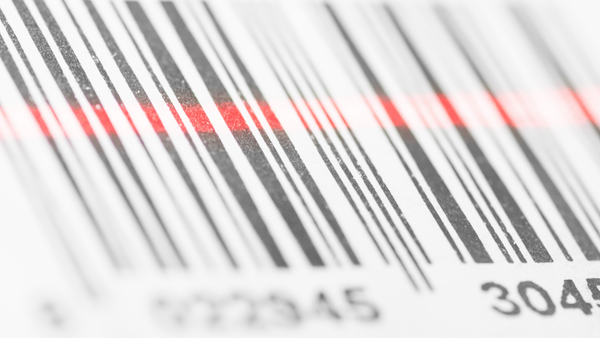
Traditional barcodes encode data in a single row of vertical lines. They work well for short identifiers scanned at a fixed angle, but they need horizontal space and dedicated barcode readers. QR codes store data in a two-dimensional grid, which means they hold more information in a smaller footprint, scan from any angle, and can be read by any smartphone camera without specialist hardware.
For asset registers, this matters for three reasons. First, the label can link directly to a web address where the full asset record lives, so scanning it pulls up the maintenance history, inspection schedule, or operating manual instantly. Second, QR codes include built-in error correction, meaning they remain scannable even when partially damaged or dirty. Third, the square format fits naturally on asset labels without requiring the wide horizontal space that 1D barcodes demand.
Plain text or serial number
The simplest approach. The label carries a human-readable asset ID alongside a QR code encoding the same number. Staff can type the ID manually or scan it. Works with any database.
URL-linked QR code
The QR code encodes a web address pointing to the asset record in your management system. Scanning opens the record in a browser. Requires network access in the field.
Offline asset ID
The QR code contains a structured identifier that a dedicated app looks up locally. Works without internet. Suitable for sites with limited connectivity.
GS1® Data Matrix
An industry-standard 2D format that follows GS1® specifications for encoding serial numbers, batch codes, and asset identifiers. Integrates with supply chain and inventory systems.
The right approach depends on your scanning infrastructure, network availability, and whether you need to comply with industry encoding standards.

Silver Fox® is a GS1® UK Approved partner. Labels produced through both the Fox-in-a-Box® system and the Pre-Print Service meet GS1® standards for barcode and Data Matrix encoding.
2. Before you print
Designing your numbering scheme
The numbering scheme is the foundation of your asset register. Get it right before printing a single label, because changing it later means relabelling everything.
Sequential numbering
The simplest and most flexible approach. Each asset gets the next number in the sequence: 00001, 00002, 00003. The number carries no meaning on its own; the database holds all the context. This approach ages well because it does not break when departments restructure, equipment moves between sites, or asset categories change.
Prefixed numbering
Adding a prefix provides context at a glance. Common patterns include device-type prefixes (L for laptop, D for desktop, T for tablet), site prefixes (LON for London, MAN for Manchester), or department prefixes (IT, MKT, ENG). The trade-off is that prefixed schemes require relabelling if the prefix loses relevance, such as when a laptop moves from the IT department to Marketing.
Hybrid approach
Some organisations use a short site prefix followed by a sequential number (LON-00142), keeping the scheme stable enough to survive department changes while still providing a quick visual cue about location. Whatever you choose, keep it consistent across the organisation and document the scheme so that anyone printing labels in the future follows the same pattern.
Numbering scheme checklist
- Fixed width: use leading zeros (00001 not 1) so codes sort correctly
- Room to grow: allow enough digits for future expansion
- No spaces or special characters in the encoded string
- Document the scheme in a shared location before printing begins
- Test with a small batch before committing to a full rollout
3. Data architecture
What to encode on the label vs what to store in the database
A common mistake is trying to encode too much information in the QR code itself. The label has limited space, and the more data you encode, the denser the QR pattern becomes, requiring a larger print area to remain scannable.
The practical split is straightforward: encode the minimum needed to identify the asset (the unique ID or a URL), and let the database carry everything else. The label physically displays the asset ID number, the organisation name or logo, and the QR code. The database record then holds the description, purchase date, location, assigned user, maintenance history, warranty details, and anything else you need to track.
When the QR code encodes a URL, scanning it opens the full database record in a browser. When it encodes just the asset ID, a scanning app looks up the record locally or online. Either way, the label stays simple and the database does the heavy lifting.

Labacus Innovator®
Silver Fox®'s label design software generates QR codes, barcodes, and GS1® Data Matrix codes directly onto asset labels. Import your asset data from a spreadsheet, and the software maps each row to a label, encoding the QR code and printing the human-readable text in a single step. Available in three tiers, with free lifetime updates and support.
The Professional tier of Labacus Innovator® supports full spreadsheet import, meaning the same data that populates your asset management system also generates the label content. This eliminates manual re-entry and the transcription errors that come with it. For a detailed look at how spreadsheet import works in practice, see our guide to printing labels from Excel and wire lists.
4. Physical labels
QR code sizing, label materials, and placement
QR code sizing
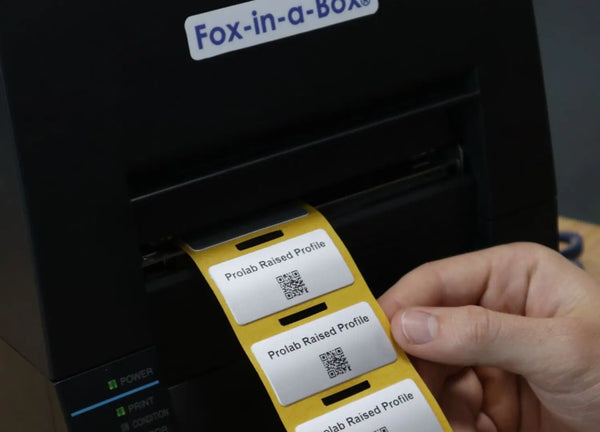
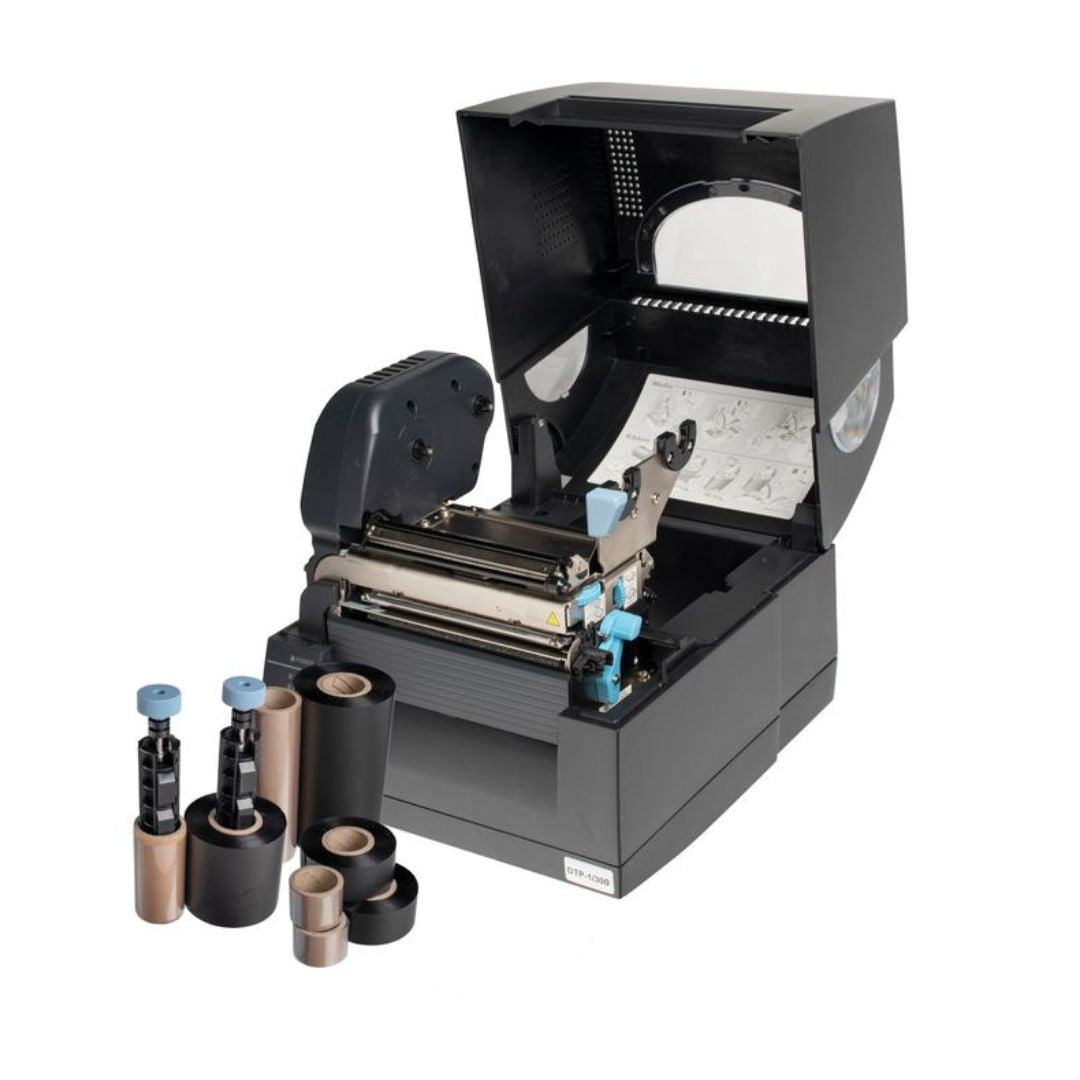
A QR code that is too small will not scan reliably, especially in poor lighting, at an angle, or when the label has collected dust. As a general guideline, a QR code encoding a short URL or asset ID should be printed at a minimum of 10mm x 10mm. At 15mm x 15mm, scanning becomes reliable even in less-than-ideal conditions. The Fox-in-a-Box® thermal transfer printer produces codes at 300 DPI, which is sufficient for reliable scanning at these sizes.
Choosing the right label material
The environment where the asset lives determines which label material you need. There is no single label that suits every situation, so most organisations end up using two or three types across their register.
Indoor / office
Prolab® Low Profile Asset Labels sit flat against the surface and use a metalised polyester face with acrylic adhesive. Designed for office equipment, server racks, and controlled environments.
Demanding / textured
Prolab® Raised Profile Asset Labels add a foam carrier beneath the polyester face. The carrier compensates for textured plastics, painted metals, and irregular surfaces where a flat label might not bond reliably.
Laser printed
Prolab® Equipment Labels come on pre-cut A4 sheets for standard office laser printers. Suitable for indoor asset tagging without specialist printing equipment.
For assets in harsh environments where adhesive labels may not be suitable long-term, engraved QR codes on Endurance® Stainless Steel or Endurance® Traffolyte provide permanent, tamper-resistant identification. Our Deploy Recruitment Group case study demonstrates how engraved QR labels replaced a proprietary patrol system on a London construction site, saving over £10,000 while improving reliability.
Placement
Place labels where they can be scanned without moving or disassembling the equipment. For desktop IT equipment, the top or side of the device works well. For racked equipment, the front face is the only practical option. For plant and machinery, choose a location that stays clean and accessible during routine maintenance. Avoid surfaces that are regularly cleaned with solvents, exposed to direct sunlight (unless the label material is UV-stable), or subject to heavy vibration. For more on placement principles, see our guide to cable label placement best practices.
5. Implementation
Connecting labels to your asset management system
The label is only useful if it connects to a maintained record. The implementation path depends on what asset management system you already use, or whether you are starting from scratch.
-
1
Prepare your asset data
Start with a spreadsheet listing every asset you plan to tag. Each row represents one asset. Columns should include the asset ID (following your numbering scheme), description, location, and any other fields your register needs. This spreadsheet becomes the source file for label printing.
-
2
Import into Labacus Innovator®
The Professional tier imports your spreadsheet directly. Map each column to a label field: asset ID to the text area, the URL or ID to the QR code generator, organisation name to a fixed field. The software creates one label per row automatically.
-
3
Print a test batch
Print 10-20 labels and test scanning with the devices your team will use in the field. Check that codes scan reliably at the size you have chosen, that the encoded data resolves correctly, and that the label material bonds to the surface of your equipment.
-
4
Roll out and verify
Apply labels to assets and scan each one to confirm the link between label and database record. Record any issues immediately. For large rollouts, consider using the Silver Fox® Pre-Print Service to produce the initial batch, then switch to in-house printing for ongoing additions.
Once the initial register is populated, the workflow for new assets is straightforward: create the database record, print the label, apply it, and scan to verify. A Fox-in-a-Box® system prints labels at 100mm per second, so a batch of QR code asset labels can be ready within minutes of a new delivery arriving. For a comparison of in-house printing routes and when outsourcing makes more sense, see our guide to printing your own asset tags.
FAQ
Common questions about QR code asset labels
What is the minimum size for a scannable QR code on an asset label?
A QR code encoding a short URL or asset ID should be printed at a minimum of 10mm x 10mm. At 15mm x 15mm, scanning is reliable even in poor lighting or at an angle. The more data encoded, the denser the pattern and the larger the code needs to be.
Can I print QR code asset labels on a standard office printer?
Yes. Prolab® Equipment Labels are supplied on pre-cut A4 sheets designed for standard laser printers. For higher durability or demanding environments, thermal transfer printing via Fox-in-a-Box® produces sharper QR codes with superior resistance to abrasion and chemicals.
What is the difference between a QR code and a GS1® Data Matrix?
Both are 2D codes, but GS1® Data Matrix follows a specific international standard for encoding serial numbers, batch codes, and asset identifiers. It is widely used in manufacturing and supply chain applications where compliance with GS1® encoding rules is required. Labacus Innovator® Professional supports both formats.
Do QR code labels work outdoors?
It depends on the label material. Prolab® Low Profile and Raised Profile asset labels are designed primarily for indoor and covered environments. For outdoor applications, engraved QR codes on Endurance® Acrylic or Stainless Steel provide permanent identification that is designed to withstand UV, weather, and physical abuse.
How do I connect a QR code label to my asset management system?
The QR code encodes either a direct URL to the asset record or a unique identifier that your system looks up. The connection is established when you create the database record and assign it the same ID that appears on the label. Importing your asset list into Labacus Innovator® ensures the printed QR code matches the database entry exactly.
Can I add QR codes to existing asset labels?
If your current labels carry a unique asset ID, you can generate matching QR codes by importing that ID list into Labacus Innovator® and printing new labels. Applying the QR label alongside or as a replacement for the existing label then adds scanning capability to your register without changing the underlying numbering scheme.
Next steps
Start building your scannable asset register
From spreadsheet to scannable label
Silver Fox® provides the complete system for QR code asset labelling: Labacus Innovator® software to design and encode labels, Fox-in-a-Box® to print them, and a range of asset label materials to suit every environment from server rooms to construction sites. Need help choosing the right approach for your organisation? Our team can advise on numbering schemes, label materials, and workflow design.
Contact us at [email protected] or call +44 (0) 1707 37 37 27.