
System Guide
From Cable Test to Cable Label: Fluke® LinkWare™ Live Integration
A step-by-step guide to the integration between Fluke Networks® LinkWare™ Live and Labacus Innovator®. How test data becomes label data, what engineers can edit before printing, and where the integration fits alongside spreadsheet import.
Structured cabling projects produce two streams of data that need to agree with each other: the cable certification record held in a test platform, and the physical labels attached to each cable. When these drift apart, handover documentation stops matching what a future engineer finds in the rack. The integration between Fluke Networks® LinkWare™ Live and Labacus Innovator® is designed to keep those two streams aligned by turning certified cable IDs directly into label content.
This guide walks through how the integration works in practice, what Labacus Innovator® lets engineers do with imported test data before printing, and how to decide when the LinkWare™ Live connection is the right workflow choice and when a CSV import fits better.

1. The problem
Why cable test data and label data drift apart
On a typical data centre or structured cabling project, cable IDs are assigned at the design stage, applied as labels during installation, and verified during certification testing. Each step involves a different tool and, often, a different person transferring data by hand.
The usual sequence: an engineer pulls cable IDs from a spreadsheet, types them into a design tool to print labels, applies those labels to cables, then runs certification tests using a Fluke® Versiv™ tester. Test results upload to LinkWare™ Live. At handover, a project manager compares labels to test reports.
Every handover between tools is a place where cable IDs can diverge. A transposed character on a label, a slightly different naming convention in the test report, a cable relabelled on site without the change flowing back to the test plan - all create reconciliation work at handover and confusion later in the life of the installation.
The LinkWare™ Live integration in Labacus Innovator® removes one of those handovers by pulling certified cable IDs straight from the cloud into the label design environment, ready to print.
2. How it works
The Fluke® LinkWare™ Live integration, step by step
LinkWare™ Live is the cloud-based results management platform from Fluke Networks®. Engineers using Versiv™ testers upload certification results to a LinkWare™ Live project, where they are stored alongside cable IDs and test parameters. Labacus Innovator® connects to that same project and downloads the cable IDs to use as label content.


Fluke Networks® Integration
Labacus Innovator® integrates with Fluke Networks® LinkWare™ Live, importing cable test results directly into label designs. This eliminates manual data entry for structured cabling projects, reducing errors and connecting physical labels to digital test documentation.
-
1
Connect to your LinkWare™ Live account
From within Labacus Innovator® Advanced or Professional, open the LinkWare™ Live integration pane and sign in. The software connects to your account and lists the available projects.
-
2
Select the project and cable IDs
Choose a project from the list. Labacus Innovator® shows the cable IDs and properties attached to that project. Select all for a full label run, or filter to a subset - for example, only the copper links in a given patch panel.
-
3
Import the data into a label design
Labacus Innovator® loads the selected IDs into a label template. Pick the label type - tie-on, wrap-around, heatshrink, patch panel strip, or fibre flag - and the software applies the correct template with the right printable area.
-
4
Review, edit, and print
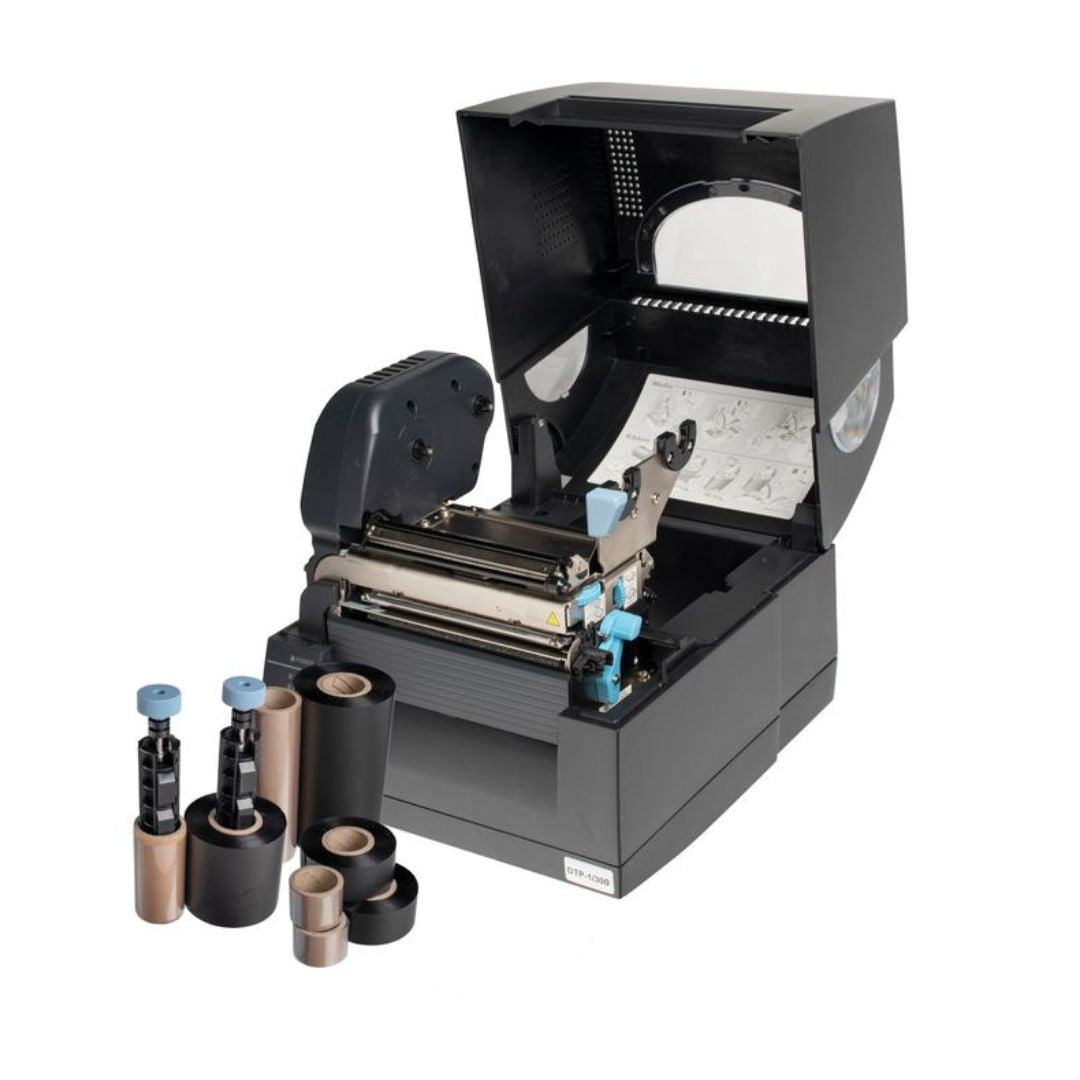
Review the labels in the live preview, make any adjustments, and send to print. Labels print on the Fox-in-a-Box® thermal transfer printer or on a standard office laser printer using the Prolab® laser range.
The Fluke® LinkWare™ Live integration is available on the Labacus Innovator® Advanced and Professional tiers. The Basic tier does not include the cloud integration.
3. The edit layer
What Labacus Innovator® does with imported test data
Importing test data is the first step. The part that matters for day-to-day labelling is what happens next: how the imported IDs can be shaped to fit the physical label before printing. Cable IDs from a test platform are rarely formatted the way engineers want them on a label. They might include a project prefix that duplicates information on the panel, or they might need to be split across two lines to fit a narrow tie-on format.
Labacus Innovator® treats imported data as editable text within the label design. Once cable IDs are loaded, engineers can:
- Trim or reformat imported IDs - strip a redundant prefix, reorder segments, or apply consistent padding.
- Split long IDs across multiple lines to fit narrow label formats without losing legibility.
- Add prefixes and suffixes required by the project labelling convention that are not in the test platform.
- Apply consistent formatting across the whole run: font, size, alignment, and, on the Professional tier, QR codes, barcodes, or GS1® Data Matrix codes linking back to the test record.
This editing step is what makes the integration practical rather than rigid. Test platforms store cable IDs in the format set up at the start of the project. Labels need to match the physical context: the printable area, the viewing distance, the information already visible on the panel. The ability to edit imported IDs before printing is how test data becomes label data that makes sense in the rack.

Labacus Innovator®
Silver Fox®'s label design software handles everything from simple sequential numbering to full spreadsheet imports, barcodes, QR codes, and GS1® Data Matrix encoding. The Advanced and Professional tiers include Fluke® LinkWare™ Live integration. Free lifetime updates and support are included with every licence.
4. End-to-end
The complete test-to-label workflow in practice
On a structured cabling project, the integration fits into a wider sequence that starts at test design and ends at handover. Here is how the workflow looks when Labacus Innovator® sits between the test platform and the printer.
-
Design
Cable IDs are defined in the project specification and entered into LinkWare™ Live as the testing plan.
-
Test
Engineers run certification tests using a Fluke® Versiv™ tester. Results upload to LinkWare™ Live.
-
Label
Labacus Innovator® pulls certified IDs from the cloud. Labels are edited, printed, and applied to each cable.
Once the testing plan is in LinkWare™ Live, the labelling stage does not require a separate data entry pass. Cable IDs already exist in a structured form, and the integration makes them available to the labelling software without the engineer exporting and re-importing a file.
For larger structured cabling jobs, the admin savings add up. As one example, Mercury Engineering reduced data centre cable labelling time from three weeks to three days after moving to an integrated Silver Fox® workflow, as covered in our cable identification time and cost guide. The integration will not suit every project - on smaller jobs where test data is not flowing through LinkWare™ Live, CSV import is often quicker.
Patch panel labelling benefits especially. Once cable IDs are imported, the Prolab® Patch Panel Labels module generates strip labels aligned to the panel geometry, and Prolab® Laser Fibre Optic Flag Labels can be printed from the same data set for fibre infrastructure in the same rack.
5. When to use it
When the integration fits, and when CSV is enough
The Fluke® LinkWare™ Live integration suits projects where certification testing is already part of the workflow and where cable IDs are managed inside LinkWare™ Live rather than in a standalone spreadsheet. Typical cases include data centre cabling, enterprise LAN installations, and large structured cabling projects where a Fluke® Versiv™ tester is in regular use.
For projects where test data is not flowing through LinkWare™ Live, CSV or spreadsheet import is often the quicker route. Cable schedules maintained in Excel by a design team, asset registers exported from a database, or simple sequential cable ID lists can all be loaded into Labacus Innovator® through spreadsheet import and printed without needing the cloud integration. CSV import is available on the Advanced and Professional tiers, and cut-and-paste from a spreadsheet works on every tier including Basic.
The decision is really about where the authoritative cable ID list already lives. If it is in LinkWare™ Live because testing is driving the project, the direct integration saves a data handling step. If it is in a spreadsheet because the schedule was built at design stage and tests follow later, importing the spreadsheet directly into Labacus Innovator® is the more efficient path.
For teams running a mix of workflows, the same label design environment supports both. The cable IDs that come out of the label printer match the source data regardless of whether they arrived from LinkWare™ Live or from a CSV import.
Frequently asked
FAQ
Which Labacus Innovator® tiers include the Fluke® LinkWare™ Live integration?
The integration is available on the Advanced and Professional tiers. The Basic tier does not include the LinkWare™ Live connection, but it does support cut-and-paste from spreadsheets and other basic data import options.
Do I need a Fox-in-a-Box® printer to use the integration?
No. Labacus Innovator® Laser works with a standard office laser printer using Prolab® laser label sheets. The Fluke® LinkWare™ Live integration runs the same way on both the laser and Fox-in-a-Box® thermal versions. The choice of printer depends on the label type: thermal transfer for tie-on, wrap-around, and heatshrink, or laser for sheet-format labels and patch panel strips.
Can I edit imported cable IDs before printing?
Yes. Once cable IDs are imported, they become editable text within the label design. Engineers can trim prefixes, split long IDs across lines, add project-specific prefixes or suffixes, and apply consistent formatting across the whole run before printing.
What happens if a cable ID changes after labels have been printed?
Re-import the updated project from LinkWare™ Live, filter to the changed IDs, and print replacements. The integration re-reads the current state of the project each time, so the labels reflect whatever is live in LinkWare™ Live at import.
Can I generate QR codes or barcodes from the imported cable IDs?
Yes, on the Professional tier. Once cable IDs are imported, the Professional tier includes QR code, barcode, and GS1® Data Matrix generation. A common pattern is to print a readable cable ID alongside a QR code that links back to the test record in LinkWare™ Live.
Is there a free trial?
Yes. The Labacus Innovator® free trial covers the Basic, Advanced, and Professional tiers so you can test the LinkWare™ Live integration before purchasing a licence.
Webinar
Watch the integration in action
This recorded webinar walks through the full Fluke® LinkWare™ Live to Labacus Innovator® workflow, from pulling certified cable IDs out of the cloud through to printing finished labels. A practical companion to the written guide above.
Next steps
Try the integration on your next structured cabling project
See how the integration fits your workflow
If you are running certification testing through Fluke® LinkWare™ Live and want to see how the integration maps onto your project, our team can walk through the setup and help identify where the integration fits alongside your existing test and label workflow.
Contact us at [email protected] or call +44 (0) 1707 37 37 27. You can also download the free trial or read more about the integration on the Fluke® LinkWare™ Live page.